In-game guide
- 1. Placing the festival
- 2. Themes
- 3. The lighting console
- 4. The portable desk
- 5. The touch screens
- 6. The set-up editor
- 7. Tickets, stalls and lockers
In this guide, /festival is the default command. Your server can change its name (see Config.Command).
1. Placing the festival
The festival is built where the origin is. The origin is a point on the map plus a direction.
- Go to the point where the centre of the front edge of the stage will be.
- Turn to face where the audience will stand.
- Type
/festival here.
The whole festival moves there, for everyone. The server remembers it after a restart.
Other commands:
| Command | What it does |
|---|---|
/festival here |
Moves the festival to your position and direction. |
/festival mount |
Builds the festival for everyone. |
/festival unmount |
Takes the festival down for everyone. Nothing is lost: it comes back the same with /festival mount. |
You can also do all this from the admin panel, including “Move to default spot”.
With the island (default)
The festival stands on its own green island, about 450 × 360 m.
In the sea (recommended).
- Go by boat, swimming or flying to the spot.
- Face the coast (or where people will arrive).
- Type
/festival here.
The island appears with its beach level with the water. Leave free space around it: about 260 m to each side, 180 m behind the stage and 245 m in front (the pier is long). No coast, rocks or docks in that area.
If you repeat /festival here while standing on the island, it keeps the same height.
On land. Stand on flat ground and type /festival here. You need a flat area of about 500 × 410 m. Hills or buildings in that area will poke through the grass.
Without the island
Turn the island off in the admin panel (or in config/island.lua). The festival then stands on the map ground. You need flat, clear ground:
| Theme | Space needed |
|---|---|
| Amphitheatre | 196 m wide × 158 m deep |
| Any other theme | 133 m wide × 158 m deep |
The stage can be up to 74 m tall (the Crystal spire).
Tip: if the festival floats or is sunk, you were not standing on the ground (or you were on top of a car or an object). Stand on the ground and repeat
/festival here.
2. Themes
The theme is the decoration of the stage. Change it with:
- the Stage section of the console, or
- the admin panel, or
/festival theme <id>
| id | Name |
|---|---|
amphitheatre |
Lantern amphitheatre |
leviathan |
Ocean leviathan |
observatory |
Astral observatory |
phoenix |
Solar phoenix |
clockwork |
Clockwork city |
spire |
Crystal spire |
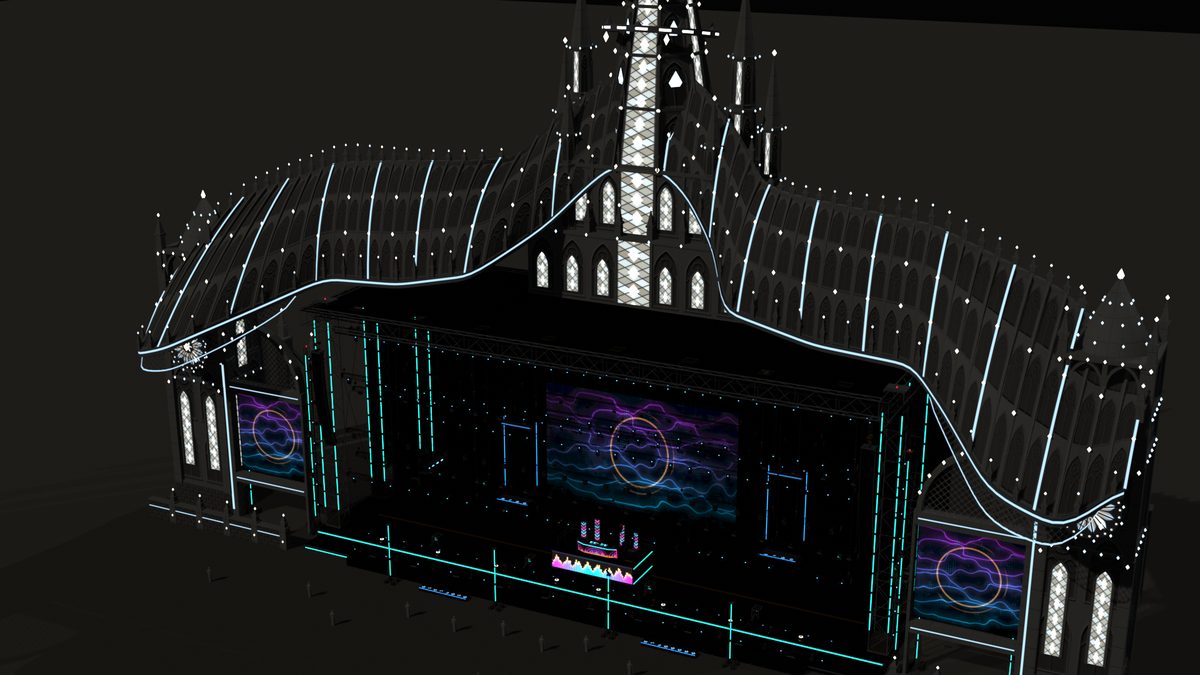
Everyone sees the change at once. The server remembers the last theme chosen.
The amphitheatre is special: it is much wider, it has its own lights, pyro and 22 screens, and the venue fence becomes wider too. With this theme the light towers and LED columns around the crowd are not placed (they would hide the theme).
3. The lighting console
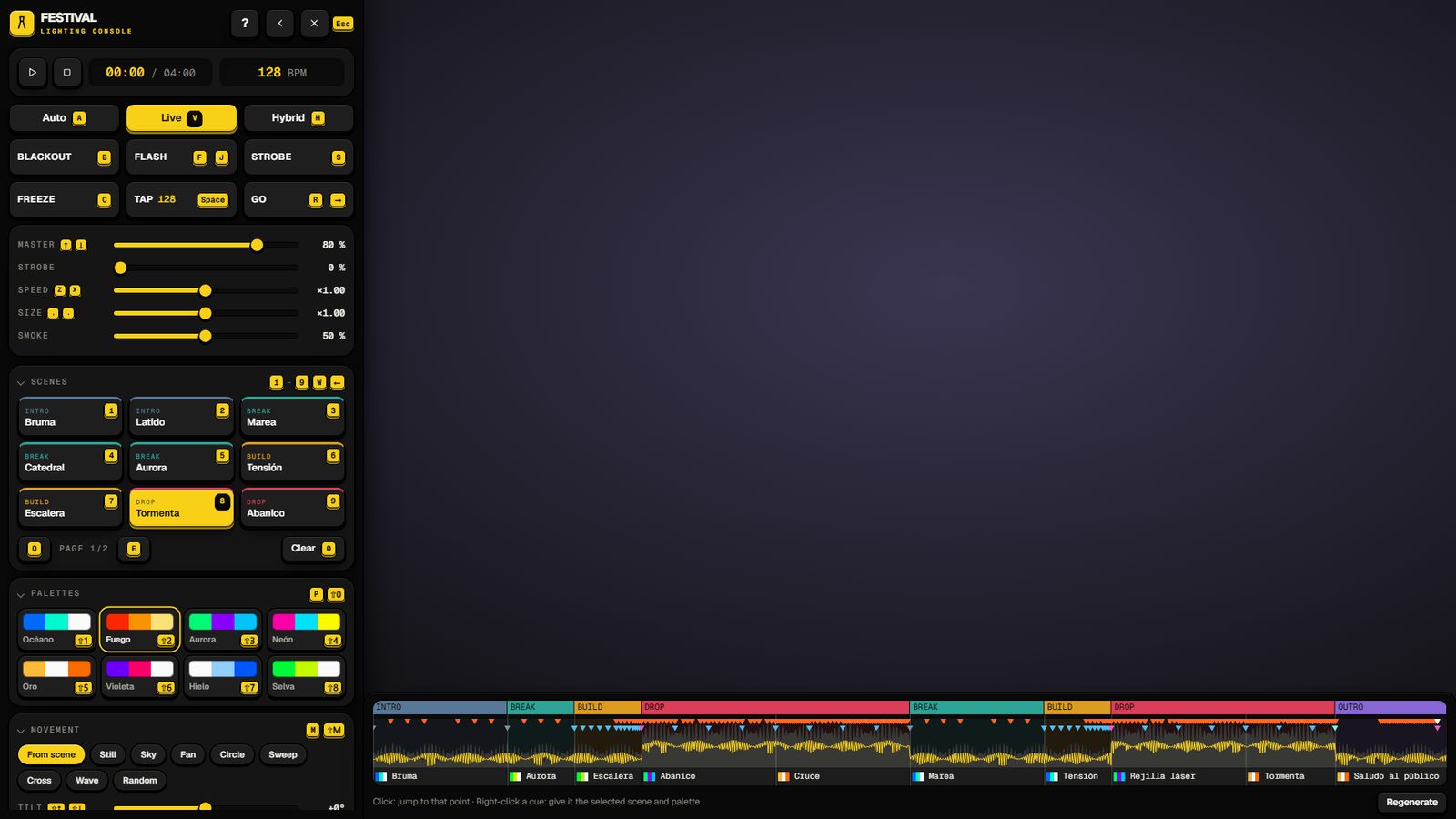
The console is a panel on the left of your screen, with the show timeline along the bottom. The stage stays visible while you work.
Open it in one of these ways:
/festival console- the “Open lighting console” option at the control booth (in front of the stage) or the DJ booth on the stage
- F7 while you hold the portable desk
Close it with Esc, F7 or the ✕ button.
Only operators can open it. Whatever you do is seen by every player. Two operators can use it at the same time: each sees the other’s changes.
Good to know:
- Hold Alt to look around with the mouse without closing it.
- The ◀ button folds it down to its header.
- Everything that is active shows in yellow.
- Each button shows its key in the corner.
- Press ? or F1 for the list of all shortcuts. It can stay open while you work.
The modes
| Mode | Who controls the lights |
|---|---|
| Auto | The automatic show. With no song playing, the lights are off. |
| Live | Only you. The show does nothing: no scenes, no pyro. |
| Hybrid | The show runs, but the scene or palette you choose replaces it while it is set. |
If you are in Auto and choose a scene or palette by hand, the console switches to Hybrid by itself.
Important: the automatic show fires pyro even if pyro is not armed. Arming only protects the buttons. If you do not want any pyro, use Live mode.
The sections, from top to bottom
| Section | What it does |
|---|---|
| Transport | ▶ plays the song from the start for everyone. ■ stops it. Shows time and BPM (beats per minute). |
| Mode | Auto, Live or Hybrid. |
| Hits (big keys) | Blackout: all lights off. Flash (hold): blinders at full, even during blackout. Strobe (hold): full strobe. Freeze: lights stop still; press again to release. Tap: tap the tempo by hand (when no song plays). GO: next scene. |
| Main | Faders: Master (overall brightness), Strobe speed, FX speed, FX size (how far lights move), Haze (how visible the beams are; above 30 % it also turns on the haze machines). |
| Scenes | 9 per page. Press to set, press again to clear. Clear removes it. |
| Palettes | 8 colour palettes. Same behaviour as scenes. |
| Movement | Forces a movement on every moving light: From scene, Still, Sky, Fan, Circle, Sweep, Cross, Wave or Random. Tilt raises or lowers the beams. |
| Groups | One row per group of lights: a fader, a colour button (cycles: scene colour, palette colours, white) and a Flash button (hold). |
| Music | Track (pick a song), URL (or type a link), Analyse (creates the automatic show). See Music. |
| Effects | Smoke (can be held), low fog, jets, streamers, bubbles, Waterfalls (on/off) and Water (fountain height; 0 = off). No arming needed. |
| Pyro | The Arm switch (mouse only, on purpose) and six buttons: flames, CO2, sparks, comets, fireworks, confetti. They only fire when armed. Flames and CO2 can be held. |
| Stage | Changes the theme. |
The timeline
At the bottom you see the whole song: its parts (intro, break, build, drop, outro), the energy of the music, the pyro and effect moments, and the cues (scene changes).
- Click anywhere: the song jumps there, for everyone.
- Right-click a cue: gives it the scene and palette you have selected. Saved at once.
- Regenerate: creates a new version of the automatic show for the same song. It deletes your manual changes.
Console shortcuts
The keys work by position, so they work on any keyboard layout. They do not work while you type in the URL box.
| Key | What it does |
|---|---|
| Esc / F7 | Close the console |
| F9 | Put the desk away (desk out only) |
| Alt (hold) | Look around |
| ? / F1 | Show or hide the shortcuts |
| A / V / H | Auto / Live / Hybrid mode |
| 1–9 | Scene on the page (again: clears it) |
| 0 | Clear scene |
| Q / E | Previous / next scene page |
| W or ← | Previous scene |
| R or → | GO (next scene) |
| Shift + 1–8 | Palette |
| Shift + 0 | Clear palette |
| P | Next palette |
| ↑ / ↓ | Master ±5 % |
| Shift + ↑ / ↓ | Beam tilt |
| B or O | Blackout |
| F or J (hold) | Flash and blinders |
| S (hold) | Full strobe |
| C | Freeze or release |
| M / Shift + M | Next / previous movement |
| Z / X | FX speed slower / faster |
| , / . | FX size smaller / bigger |
| Space | Tap tempo |
| G (hold) | Smoke |
| K (hold) | CO2 (armed) |
| L (hold) | Flames (armed) |
4. The portable desk
A tablet to run the lights while you walk around the venue. With it in your hands, game keys control the lights without opening the console. A small bar at the bottom right shows the scene, palette, master, BPM and what is active.
Take it out: use the festival_desk item from your inventory, or type /festival desk.
You must be an operator, on foot, and near the festival. If your server sets requireItem = false, you do not need the item.
Put it away: F9, /festival desk again, or use the item again.
It is also put away by itself if you get in a vehicle, walk away from the festival, draw a weapon, die, start another animation, drop the item or lose your permission.
Other players see you holding something, but not the tablet itself.
Desk keys (default)
They only work with the desk out and the console closed.
| Key | What it does |
|---|---|
| F7 | Open the full console |
| F9 | Put the desk away |
| J (hold) | Flash and blinders |
| 6 (hold) | Full strobe |
| O | Blackout |
| 7 | Previous scene |
| 8 | GO (next scene) |
| 9 | Next palette |
| 0 | Tap tempo |
| Page Up / Page Down | Master up / down |
| Insert (hold) | Smoke |
| Delete (hold) | CO2 (must be armed) |
| End (hold) | Flames (must be armed) |
| (no key) | Freeze (bind it yourself) |
Pyro can only be armed from the console, with the mouse.
Change the keys: in the game menu, Settings > Key Bindings > FiveM. Look for the entries that start with “Festival:”. Each player can choose their own keys.
5. The touch screens
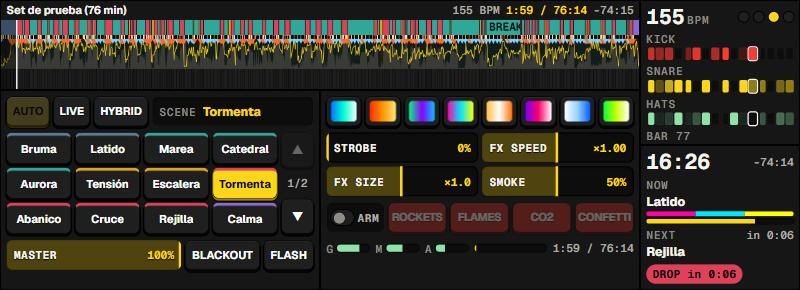
The lighting desk at the control booth (and any lighting desk placed with the set-up editor) has five live screens. Three of them can be touched.
How to touch them:
- Walk up to the desk (closer than 2.5 m).
- Hold Left Alt. A mouse cursor appears.
- Click buttons, drag faders, use the mouse wheel.
- Release Alt (or walk away) to get your normal view back.
A hint shows the key every time you get close.
| Screen | What it shows |
|---|---|
| Top (long) | The whole song with its parts, the cues, the pyro and the playhead. Click to jump. |
| Left monitor | Mode, scenes (12 per page), master, Blackout and Flash. |
| Right monitor | Palettes, strobe, FX and smoke faders, Arm, rockets, flames, CO2 and confetti, and level meters. |
| Left wing | The rhythm (view only). |
| Right wing | The clock, current and next cue, and time left (view only). |
- Only operators can touch. Everyone else just sees them.
- You cannot touch them while the console or the set-up editor is open.
Alt clashes with pma-voice. The pma-voice radio uses Alt by default. Change one of the two: Settings > Key Bindings > FiveM, entry “Festival: touch the desk screens”. See Troubleshooting.
6. The set-up editor
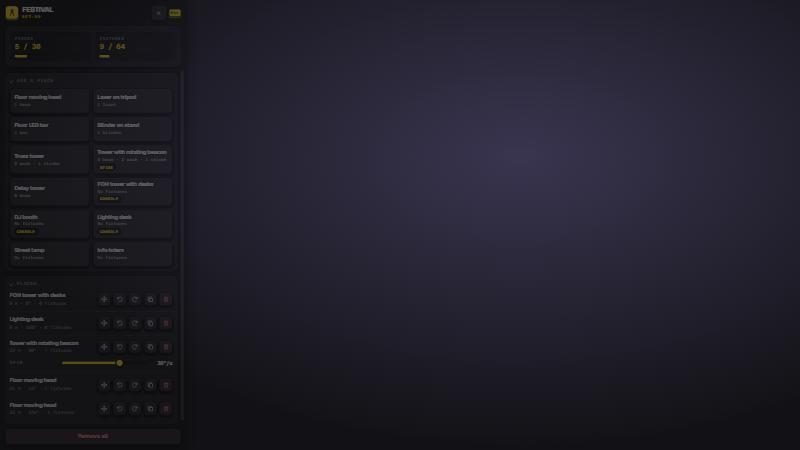
Place extra pieces around the venue from the game: lights, lasers, towers, DJ booths and lighting desks.
Open it: /festival setup, or the “Open set-up” button in the admin panel. You must be an operator. Esc closes it.
From top to bottom it shows: what is still free, the catalogue, and what you have placed (nearest first).
The catalogue (12 pieces)
Floor moving head, laser on tripod, LED bar, blinder, truss tower, tower with rotating beacon, delay tower, FOH tower with desks, DJ booth, lighting desk, street lamp and info totem.
The FOH tower, DJ booth and lighting desk have an “Open console” option. The lighting desk also has touch screens.
Placing a piece
- Click a piece in the catalogue.
- A see-through copy follows where you look.
- Adjust it with the keys below.
- Left click to place it.
If it is outside the venue, it turns red and cannot be placed.
| Key (while placing) | What it does |
|---|---|
| Mouse wheel | Turn 5° |
| Shift + wheel | Turn 45° |
| Page Up / Page Down | Raise or lower (tap: 10 cm; hold: faster) |
| Left click | Place |
| Right click, Backspace or Esc | Cancel |
Placed pieces
For each piece in the list you can: move it, turn it 15°, place another copy, or remove it. The beacon tower also has a spin speed. Remove all asks for a second click.
- The new lights follow the console like the stage lights. They appear as new rows in Groups.
- Pieces are saved on the server. They move with the festival when you use
/festival here, and stay when you change the theme. - Limits (default): 30 pieces and 64 extra lights, within 250 m of the stage. Change them in
config/building.lua. - Without the island, pieces do not snap to the ground: they keep the height where you placed them.
- The fixed booths of the venue cannot be moved or removed. You can only add more.
7. Tickets, stalls and lockers
These need a framework (Qbox, QBCore or ESX).
Tickets (wristbands)
- Buy them at the two ticket booths by the entrance arch.
- General: $150. VIP: $600 (VIP also counts as general). Prices are in
config/economy.lua. - Paid with cash, or with the bank if there is not enough cash.
- Wristbands do not expire and are not used up.
Access control
- Inside the fence without a wristband: you get a warning. After 15 seconds you are taken to the entrance.
- On the VIP deck without a VIP wristband: you are taken to the foot of the stairs.
- It does not apply to operators, to players in a vehicle, or to dead players.
- Turn it off with
required = falseinconfig/economy.lua.
Stalls
15 stalls: bar, food, water and merchandise. With ox_inventory each one is a shop. With other inventories, a menu where you choose the amount (1 to 10). You can only buy near the festival. What each stall sells is in config/economy.lua. The merchandise stall is empty by default: add your own items.
Lockers
Each character has one personal locker. It is the same from any locker in the venue. Lockers only work with ox_inventory.
Operator job
Players with the job festival (or any job in config/permissions.lua) can run the console like an operator. The job must exist in your framework: this script does not create it.